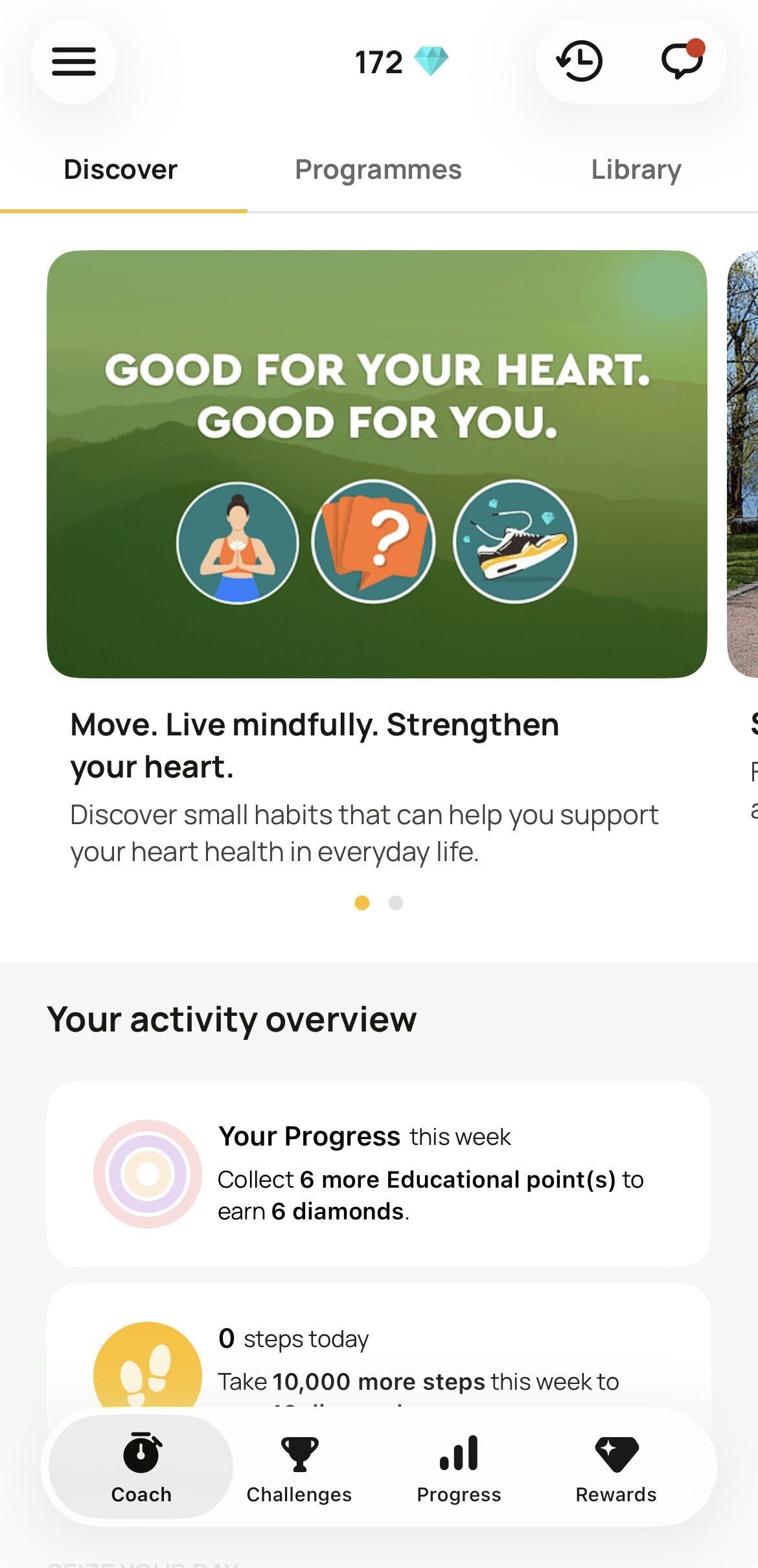
With app teasers, you can prominently highlight company news on the home screen of the Health4Business app and attract employees’ attention. They are especially useful to increase engagement and promote challenges, events, or important updates.
Create an app teaser
You can create an app teaser by going to “App teasers” under “Content and engagement” and clicking “Create new”.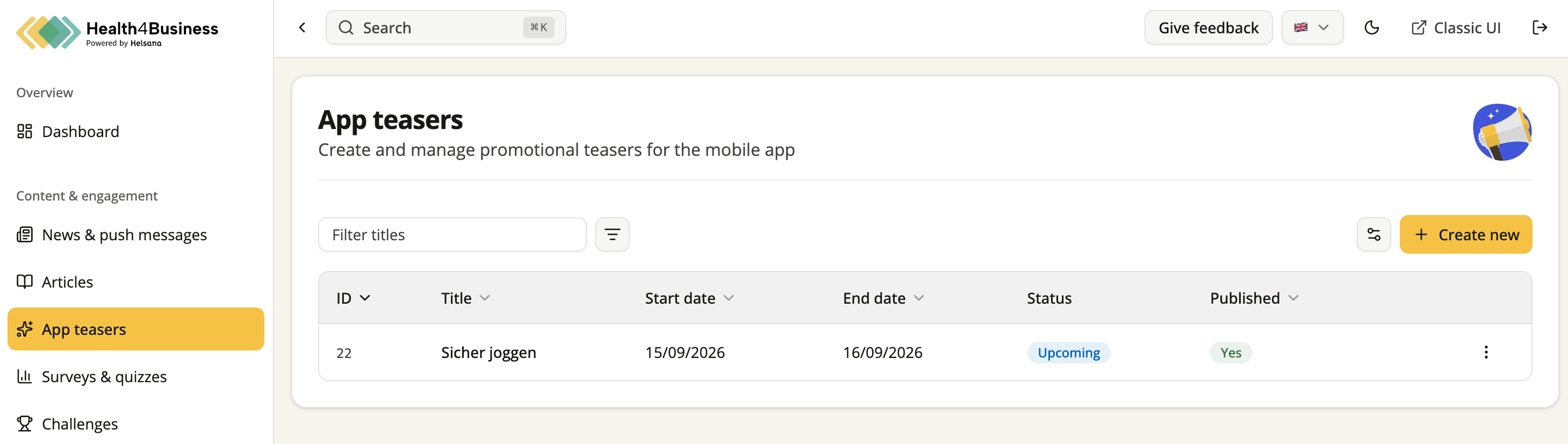
A form will open where you can create your teaser in four steps.
Step 1: Content
In the first step, you define the content of your teaser:
Upload an image (drag & drop or browse; PNG/JPG, max. 1024 KB, 818×520 px)
Add a title (max. 100 characters) and a description (max. 200 characters)
A live preview is shown on the right side of the screen, allowing you to see how the teaser will appear in the app before publishing. Although character limits are displayed in the form, we recommend using the live preview as your primary guide. It provides the best indication of the final appearance and helps ensure your content is clear and visually effective.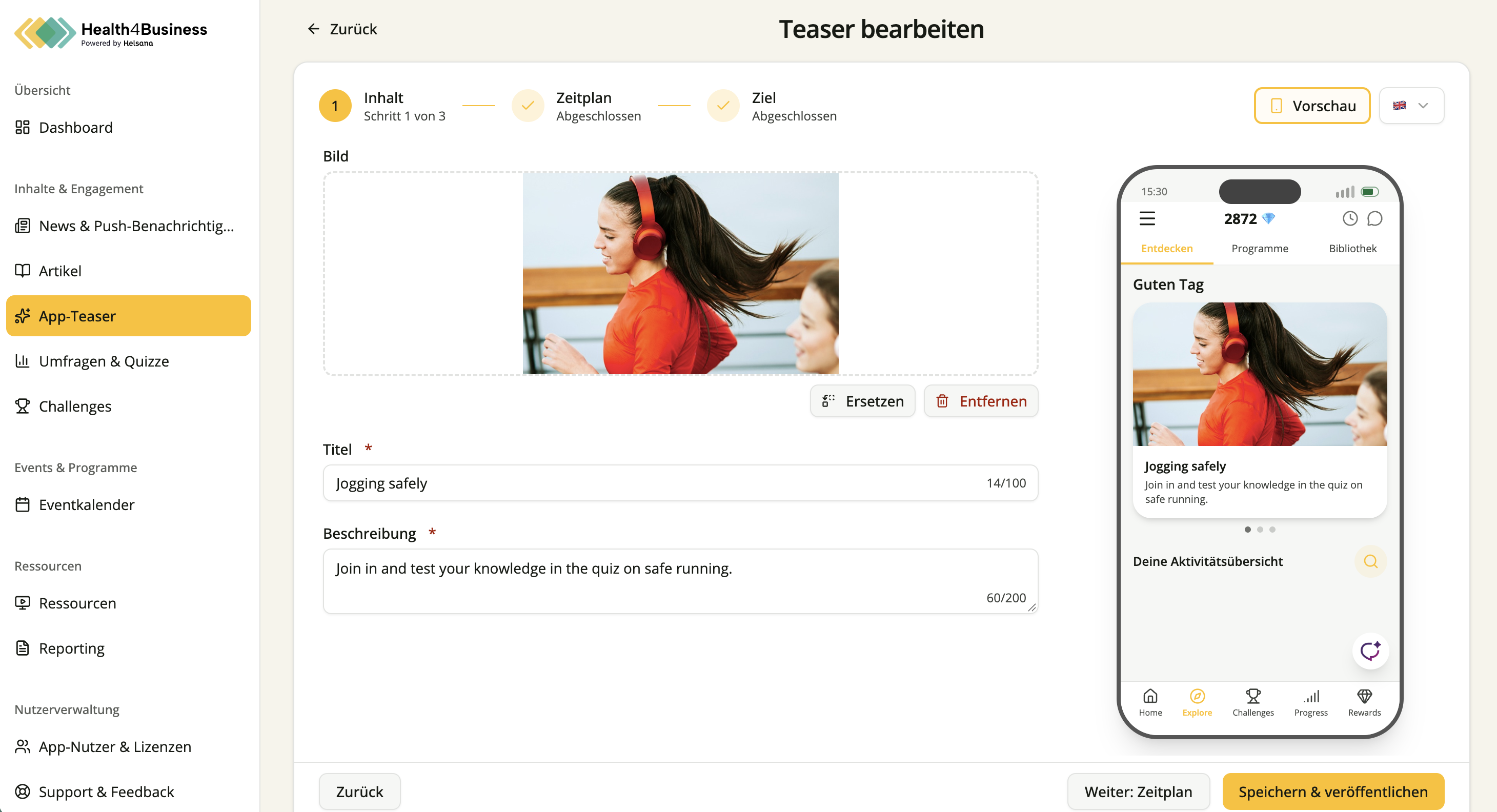
Step 2: Schedule
Click “Next: Schedule” in the bottom right corner to define when your teaser should be displayed.
You can:
Set a start and end date
Step 3: Link target
Click “Next: Target” in the bottom right corner to define where your teaser should lead.
You can link to:
Event calendar
URL
Quiz
Survey (including global templates available)
These elements must already exist before they can be linked.
Step 4: Targeting
Click “Next: Targeting” to define who should see the app teaser:
Everyone: all users in the parent company
Custom: specific departments and/or locations
If you want to target specific groups, make sure they are already set up under
Settings → Account settings → Reporting, where departments and locations can be managed.
Final step: Save or publish
Once all four steps are completed, you can:
Save as draft → the teaser will be stored in App teasers, where it can be edited or deleted via the three-dot menu
Save & publish → the teaser will be displayed according to your defined schedule
Important notes
The order of teasers is based on the creation date. The most recently created teaser is shown at the top of the carousel in the app.
If an app teaser is updated, its position in the order also changes and it moves back to the top.
In addition to company-specific teasers, global teasers for challenges or missions may also be displayed to all users.
App teasers cannot be manually positioned or individually prioritized. Their order is automatically determined by the creation date (newest first).
The perfect teaser image
If your image is too large, you can compress it using TinyPNG without losing quality: https://tinypng.com/
Upload your image, compress it, and download the optimized version.
Use cases
App teasers can be used for seasonal or special communication, such as:
Welcome messages
Christmas greetings
Easter greetings
How to write engaging in-app content
To maximize engagement, content should be:
Clear and easy to understand
Action-oriented and relevant
Focused on benefits or participation value
Supported by a strong visual image
The title should attract attention, while the description should provide additional context or motivation.
Challenge communication
Communicate your challenges and related updates through app teasers in the Health4Business app. Linking app teasers to your challenge is currently not available as a self-service feature. Please reach out to your customer success manager for more information.
Was this article helpful?
That’s Great!
Thank you for your feedback
Sorry! We couldn't be helpful
Thank you for your feedback
Feedback sent
We appreciate your effort and will try to fix the article